 how-to
Using Text-to-Speech for Homework: A Parent's Guide
Table of Contents
- What Text-to-Speech Is and Why It Matters for Homework
- Text-to-Speech for Reading Homework: When and How to Use It
- How to Use Text-to-Speech for Worksheets and PDFs
- Free Text-to-Speech Tools for Homework Support
- Text-to-Speech Tools for Students: Choosing the Right Option
- Supporting Learning Without Compromising Understanding
- Common Challenges and Troubleshooting
- Frequently Asked Questions
Last Updated: October 14, 2026
What Text-to-Speech Is and Why It Matters for Homework
Text-to-speech (TTS) is technology that converts written words into spoken audio. A computer or app reads text aloud in a natural-sounding voice. For homework, this means your child can listen to assignments instead of, or while, reading them.
Why does this matter? Many students struggle with reading fluency, focus, or comprehension. Others are auditory learners who absorb information better through listening. Using text-to-speech for homework removes a barrier. Your child can engage with the material without getting stuck on decoding words.
This is especially powerful for students with reading difficulties, dyslexia, or ADHD. But it also helps typical readers who are tired, distracted, or working through complex material. The key insight most parents miss: using text-to-speech for homework isn't about avoiding reading.
Speech synthesis technology has gotten really good. Voices sound natural now, not robotic. Most tools let you adjust speed, pick different voices, and highlight text as it reads. Built-in options on phones and tablets are free.
The bottom line: TTS is an accessibility tool that works for everyone. It's not cheating. It's not a shortcut.
Text-to-Speech for Reading Homework: When and How to Use It
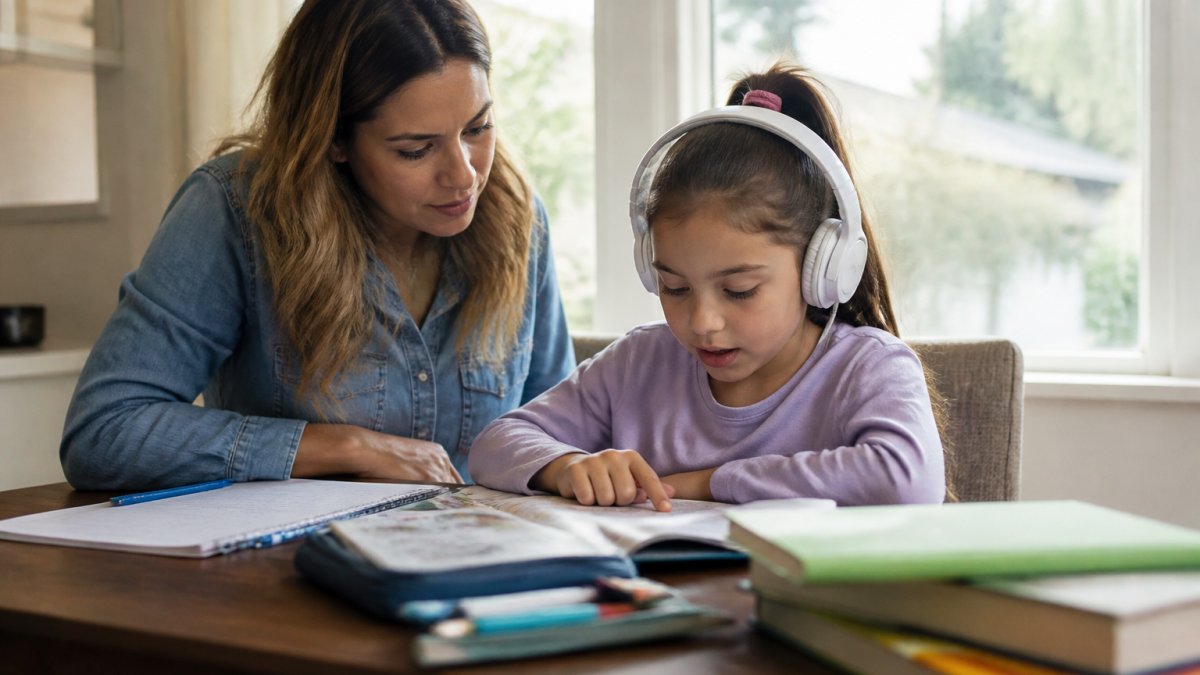
Use TTS when your child is reading textbook passages, short stories, or comprehension questions. It works best for assignments where understanding the content matters more than practicing decoding skills.
Here's when TTS is most helpful:
- Reading passages for comprehension. Your child needs to answer questions about what they read. TTS lets them listen while following the text, catching details faster.
- Long assignments. When a reading task is 10+ paragraphs, listening reduces fatigue and keeps focus.
- New or difficult vocabulary. Hearing words pronounced correctly helps with understanding and retention.
- Late in the day. Tired kids benefit from audio support when their reading stamina is low.
- Students with identified reading challenges. Dyslexia, ADHD, and processing disorders respond well to multi-sensory input.
When NOT to use TTS: phonics practice, sight word drills, or assignments specifically testing reading fluency. If the goal is to build decoding skills, listening alone isn't enough. Your child needs to engage with the written word.
The sweet spot is combined use. Your child reads along while the text is read aloud. This is called synchronized highlighting. Eyes and ears work together. Comprehension jumps. Retention improves.
How to set it up:
- Open the document or webpage on a device (tablet, phone, or computer).
- Find the read-aloud feature (usually in settings or accessibility options).
- Adjust the voice and speed to your child's preference.
- Start the audio and have your child follow along with their eyes.
- Pause to discuss or answer questions as you go.
This takes two minutes to set up. Most devices have built-in TTS at no cost. The investment is just time and a small habit shift.
How to Use Text-to-Speech for Worksheets and PDFs
Worksheets and PDFs are common homework formats. Many are scanned images of printed pages. This creates a challenge: standard TTS can't read images. You need a workaround.
For PDFs with selectable text:
- Open the PDF on your device.
- Use the built-in read-aloud feature (available on most tablets and computers).
- Select the text you want read, or let the tool read the whole document.
- Adjust speed and voice as needed.
For scanned worksheets (images):
This is trickier. The document is a picture, not text. Standard TTS won't work. You have two options:
- Use optical character recognition (OCR). Apps like Google Lens or Adobe Reader can convert the image to readable text. Then apply TTS to the converted text. This takes a few extra seconds but works well for clean, legible worksheets.
- Read it aloud yourself or use a specialized app. If OCR is too slow, read key sections aloud to your child. Or use education apps designed for homework that handle image-to-speech conversion automatically.
Pro tip: If your child's school uses Google Classroom, you're in luck. Google's read-aloud feature works on most classroom documents and handles both text and some image formats. It's free and built in.
What about inaccessible files? Some PDFs are locked or poorly formatted. If TTS won't work, ask your child's teacher for a text version or an accessible format. Schools are required to provide this for students with documented needs.
Free Text-to-Speech Tools for Homework Support
You don't need to buy anything. Free options are powerful.
Built-in device features:
- iPhone/iPad: Open any text, select it, tap "Speak." Or use "Speak Screen" from accessibility settings to read the whole page.
- Android: Most devices have "Text-to-Speech" in accessibility settings. Select text and tap the speaker icon.
- Windows: Use the "Read Aloud" feature in Microsoft Edge or Windows accessibility settings.
- Mac: Select text and use "Speech" in system preferences.
These are free, always available, and require no setup. Start here.
Free web-based tools:
- Google Classroom read-aloud (if your school uses it): Built into assignments and documents. Free, no account needed beyond your school login.
- Natural Reader (free tier): Converts text to speech for web pages and documents. Voices sound natural. The free version covers basic use.
- Immersive Reader (free in Microsoft Edge): Reads webpages and documents aloud with highlighting. No cost.
Free education apps:
- Speechify (free tier): Reads PDFs, webpages, and documents. Offers multiple voices and speed control. Premium version adds features, but free works for most homework.
- Voice Dream Reader (free trial): Designed for students. Reads books, PDFs, and web content. Highlights text as it reads.
The free options cover 90% of homework needs. Paid versions add voice quality, more languages, or offline access. But for most K-5 homework, free is enough.
Text-to-Speech Tools for Students: Choosing the Right Option
Not all TTS tools are equal for homework. Some are designed for accessibility. Others focus on learning support. Here's how to choose.
What to look for:
- Natural-sounding voices. Robot voices are distracting and hard to follow. Modern AI voices sound like real people. Test a few to find one your child likes.
- Highlighting that syncs with audio. The text lights up as it's read. This keeps your child's eyes and ears coordinated. Comprehension improves.
- Speed control. Some kids need slower speech. Others want faster. Adjustable speed matters.
- Offline access. If your internet drops, can it still read? For homework at home, online is fine. But offline is a bonus.
- Compatibility with school formats. Does it work with Google Classroom, Schoology, or whatever platform your school uses? Test before committing.
- Privacy. Does the tool upload files to servers? For school documents, this matters. Check the privacy policy.
Free vs. paid:
Free tools handle most homework. Paid versions offer more voices, better AI quality, or advanced features. For K-5 students, free is usually sufficient. Upgrade only if free tools don't meet your child's needs.
For students with reading challenges:
Look for tools designed specifically for learning support, not just accessibility. These include study features like vocabulary support, comprehension questions, or note-taking. K5 Homework Aid For Parents combines text-to-speech with homework explanations, so your child hears the content AND understands the method, a combination that supports real learning.
Supporting Learning Without Compromising Understanding
Here's the concern every parent has: Will using TTS let my child skip the hard work of reading?
The answer is no, if you use it right.
TTS is a tool, not a replacement. Your child still engages with the material. They just access it through sound instead of decoding every word. This frees up mental energy for comprehension and thinking.
The key is intentional use:
- Don't just listen passively. Have your child follow along, highlight key points, and stop to discuss what they're hearing.
- Use TTS for access, not avoidance. If the assignment is "read and understand," TTS helps. If it's "practice reading skills," your child needs to read.
- Combine with other strategies. TTS works best with note-taking, discussion, or follow-up questions. Listening alone isn't enough.
- Check for understanding. After listening, ask your child to explain what they learned. This confirms comprehension, not just passive hearing.
Does TTS hurt reading development?
No. Research on assistive technology shows that students who use TTS alongside reading actually improve their reading skills. They see words in context, hear correct pronunciation, and engage with more challenging material. The combination accelerates learning.
What about homework integrity?
Using TTS is not cheating. Teachers know students use it. Most schools allow it. If you're unsure, ask your child's teacher. Explain that TTS helps your child access the content so they can focus on learning. Most teachers support this.
The goal of homework isn't to make reading hard. It's to deepen understanding. TTS removes the reading struggle so understanding can happen.
Common Challenges and Troubleshooting
Problem: The app won't read my child's PDF.
Solution: Check if the PDF is selectable text or a scanned image. If it's scanned, use OCR to convert it first (Google Lens works).
Problem: The voice sounds robotic or unnatural.
Solution: Try a different voice. Most apps offer 3-5 options. Newer AI voices sound much better than older ones. If the app feels outdated, try a newer tool.
Problem: My child won't follow along, they just listen.
Solution: Make it interactive. Pause every few sentences and ask questions. Have them highlight key points. Use a worksheet to track ideas. Passive listening doesn't work.
Problem: The reading speed is too fast or too slow.
Solution: Adjust the speed setting. Most apps let you slow down to 0.5x or speed up to 1.5x.
Problem: My child's school uses a platform I can't access TTS on.
Solution: Download the assignment or take a screenshot, then use a standalone TTS app. Or ask the teacher if the school has accessibility tools built into the platform.
Problem: I'm worried about privacy when uploading homework files.
Solution: Check the app's privacy policy. For school documents, use tools that don't store or share files.
Using text-to-speech for homework transforms how struggling readers and auditory learners engage with assignments. The technology is free, accessible, and proven to support comprehension without compromising learning.
Frequently Asked Questions
What are the benefits of text-to-speech for students with reading challenges?
Text-to-speech reduces reading fatigue, improves comprehension, and builds confidence for students with dyslexia or other reading difficulties. By hearing words pronounced correctly while following along with highlighted text, students strengthen phonological awareness and vocabulary recognition. For auditory learners, this combination of listening and reading creates stronger memory pathways, making homework less frustrating and more productive.
Can my child use text-to-speech without just copying answers instead of learning?
Yes, when used correctly. The key is pausing the audio to discuss what's being read, asking your child to explain concepts in their own words, and having them identify main ideas before moving forward. Text-to-speech works best as a reading support tool, not an answer generator. Pair it with questions like 'What did that sentence mean?' or 'Can you solve this step after hearing it?' to ensure genuine understanding.
What free text-to-speech options work best for K-5 homework?
Built-in accessibility tools are often the easiest starting point: Apple's Speak Screen (iOS/Mac), Android's Text-to-Speech (Google Play), and Windows Narrator are free and require no setup. For PDFs and documents, Google Classroom has native read-aloud features, and many school learning platforms include built-in audio options. These free, integrated tools work across most homework formats without additional downloads or subscriptions.
How do I use text-to-speech on a scanned worksheet or image file?
Scanned worksheets and photos of assignments are trickier because they're images, not text. Convert them first using free OCR (optical character recognition) tools like Google Lens, Microsoft Lens, or Smallpdf's OCR feature to extract the text. Once converted to editable text, you can apply text-to-speech. Alternatively, retype the assignment into a document and use text-to-speech on that version, or ask the teacher for a digital copy of the assignment.